Your website can be beautiful and Google can still have no idea what it is. These are the six steps I used to fix that on my app's website, nudgio.one: what each thing is, how to check whether you have it, and a prompt so your AI makes the changes. No SEO knowledge needed.
Tested on nudgio.one, October 2026
With any AI that writes code
6 steps and 6 prompts
Everything used here is free
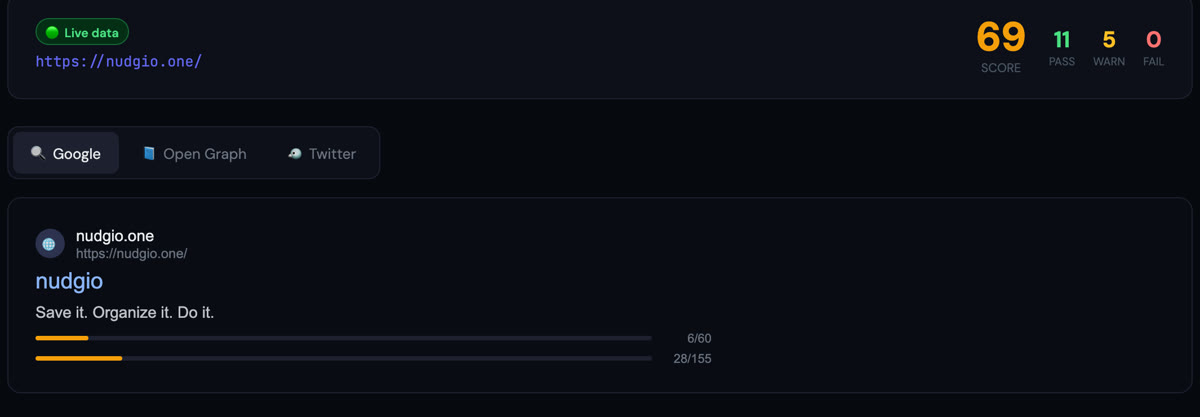
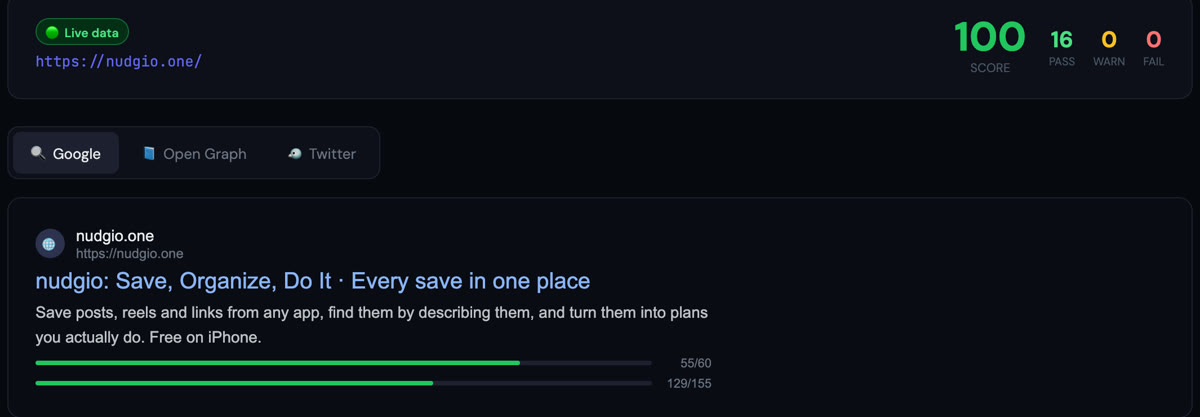
Before: the title was just “nudgio”. TagScope gave it a 69After: a title and a description that say what it is. A 100
What SEO is, in one sentence: everything that lets Google know what your website is and show it to people searching for what you offer. And a trap: Lighthouse, Google's own tool, gave my old website an SEO score of 100, because it only checks the basics (for example, that a title exists, not that it says anything). To see what Google and social apps actually read, use TagScope, the tool I built for this: paste your address and it tells you what's missing.
What shows up on Google. It should say what your website is, not just its name.
⌄
What they are. The title is the blue text in Google's results. The description is the gray text underneath. You write them in each page's code; Google can change them, but it starts from what you give it.
How to see yours. Paste your address into TagScope, on the Google tab. Or search Google for site:yourwebsite.com and look at how each page shows up.
Title
Description
Bad
nudgio
Save it. Organize it. Do it.
Good
nudgio: Save, Organize, Do It · Every save in one place
Save posts, reels and links from any app, find them by describing them, and turn them into plans you actually do. Free on iPhone.
Title: your brand and what you do, in about 50 to 60 characters. Each page with its own.
Description: what someone gets by clicking, in about 120 to 155 characters.
It's not an official limit: Google cuts by screen width, and at those lengths it usually fits whole.
Prompt 1 · Title and description
Review the title (<title>) and the description (meta description) of every page on my website.
My website is about [what it is] and it's for [who it's for].

For each page, suggest a 50 to 60 character title that says what it is, not just the name, and a 120 to 155 character description that says what someone gets by clicking.
Show me a table with the before and after, and don't change anything until I say yes.
02
The card that shows up when you share
What people see when someone pastes your link into WhatsApp or LinkedIn.
⌄
What it is. When you paste a link into WhatsApp, LinkedIn or X, a card shows up with an image, a title and some text. That card comes from tags in your code called Open Graph (the ones starting with og:). If you don't have them, the card comes out empty or with whatever the app grabs first.
How to check it.
Paste your link into a WhatsApp chat with yourself and see how it looks.
On LinkedIn, with its Post Inspector: besides showing you the card, it makes LinkedIn read it again if you just changed it.
Both tools may ask you to sign in with your account.
Heads up: apps keep the card cached for a while. If you change it and the old one still shows, it's not broken: it just takes time to refresh.
Prompt 2 · The share card
Add the sharing tags to every page on my website: og:title, og:description, og:image (a 1200x630 image), og:url and og:type, plus the ones for X (twitter:card summary_large_image, twitter:title, twitter:description and twitter:image).
If my website is in several languages, each language gets its own image and texts.

Show me which image you'd use before creating it. Then tell me how to check it.
03
The map of your pages: sitemap and robots.txt
So Google finds every page you want it to find.
⌄
What they are. The sitemap is the list of pages on your website that you want Google to find, like the table of contents of a book. The robots.txt is a note for search engines: what they can look at and where that sitemap is.
How to know if you have them. Open yourwebsite.com/sitemap.xml and yourwebsite.com/robots.txt. If you get a 404 error, you don't have them. My old website had neither.
If your website has several languages: Google doesn't use the lang attribute or hreflang to know what language your page is in: it works it out from the text. hreflang tells it which page is the version for each language, and it can go in the sitemap.
If your website is built with Wix, Squarespace or Shopify, they usually create both for you: check they exist at those two addresses.
Prompt 3 · Sitemap and robots.txt
Create a sitemap.xml on my website with every public page I want Google to find (no private or test pages) and a robots.txt that allows crawling and says where the sitemap is.
If my website is in several languages, the sitemap should say which page is the version for each language.
If my website's framework already knows how to generate them, use its way of doing it. Then give me both addresses so I can check.
04
The profile that tells Google what you are: structured data
A profile inside your code, invisible to readers.
⌄
What it is. A profile written inside the page's code that tells Google what's there, in a language it understands without guessing: “this is an app, for iPhone, free to download, from this brand, and these are its social accounts”. It's called structured data, and the format Google recommends is called JSON-LD (a block of text with labels and values, like a library card). The vocabulary of those profiles, what counts as an app or a product, is defined by Schema.org, a standard that search engines share.
The ones that help you:
Organization: your brand, your logo and your social accounts. It helps Google connect your profiles to your website.
WebSite: your website and its name.
The one for what you offer: an app (MobileApplication), a product (Product), a business with a physical location (LocalBusiness).
Article: for guides or articles.
Two rules. Everything you put in the profile has to be visible on the page too. And no ratings copied from another website (like your App Store stars): Google doesn't allow it. FAQs (FAQPage) no longer show up on Google as a rich result (a result with extras, like stars or expandable questions) since May 2026, although they still help readers.
Add structured data in JSON-LD to my website: Organization (with my logo and my social accounts in sameAs: [links]), WebSite, and the type for what I offer ([app / product / business with a physical location]). On guides or articles, Article.

Everything has to match what's visible on the page: no ratings or data that aren't shown.
Then tell me how to check it with Google's Rich Results Test.
05
Search Console and Bing, screen by screen
Registering your website, and the two mistakes I made.
⌄
Search Console is Google's free dashboard for your website: you tell it your website exists, you give it your map of pages, and it shows you how people find you.
Register it
Go to search.google.com/search-console with your Google account and click Add property (that's what Search Console calls each website you register).
Choose Domain (it covers your website with and without www, and on http and https). If you can't touch your domain settings, choose URL prefix, which lets you verify with a code on the page.
Verify it's yours. Google gives you a piece of text starting with google-site-verification=. You paste it as a TXT record in your domain settings, on the website where you bought or manage it (the section is usually called DNS). It's like leaving a note in your mailbox to prove you live there. Then click Verify: it can take anywhere from a few minutes to a few hours.
Give it your map of pages
In the menu, Sitemaps. Type the full address: https://yourwebsite.com/sitemap.xml.
My mistake 1: I typed just sitemap.xml and got “Invalid sitemap address”. In a Domain property you have to type the full address.
Ask it to put your pages in its search engine
That's called indexing. In URL inspection, paste a page and click “Request indexing”. It goes one page at a time and there's a daily limit, so start with the most important ones. Asking doesn't guarantee it gets included or when, but it helps Google look at it sooner.
How to know if it's in: on the “Google Index” tab it has to say “URL is on Google”. The “Live test” only says Google can index it, not that it already has.
Bing
Bing has its own search engine, separate from Google's, so it's worth registering there too. At bing.com/webmasters, choose to import from Google Search Console: it brings over your website already verified, plus your sitemap.
My mistake 2: after importing, I was left with a blank screen. Go straight to bing.com/webmasters/sitemaps?siteUrl=https://yourwebsite.com/ and everything is there.
What to look at afterwards
Give it a few weeks. In Search Console, the Pages report tells you which ones are on Google and why some aren't. The Performance report shows how often you appear in searches, how many clicks you get and which words people use to find you.
The prompt below also asks your AI to check for noindex: a tag that tells Google not to put that page in its search engine. Sometimes it's left on by accident, from when the website was in testing.
Prompt 5 · Before registering your website
I'm going to register my website [URL] on Google Search Console and on Bing.
First, check I have everything they'll ask for: the sitemap.xml (give me its full address), the robots.txt pointing to it, and that no important page has noindex.

Then tell me, step by step and for beginners, where to add a TXT record in the dashboard of [where you bought your domain], to verify the domain in Search Console.
06
Guides that answer what people search for
The one that takes the most work, and the one that can bring you the most people.
⌄
See what people type into Google. Start typing a search about your topic and write down what autocomplete suggests. For example, in Spanish I kept seeing “cómo encontrar un reel guardado” (how to find a saved reel), so I wrote a guide about it.
See who ranks at the top for that search and what they're missing.
Shape the guide around what the person is looking for. If they're looking for a product (“app to save recipes”), lead with the product. If they're looking for an answer (“how to search my saves”), give them the answer at the top, in two lines, and then the step by step.
Check every claim in your own product, and use real screenshots.
One guide per question, with its own content. Ten identical pages with one word swapped are what Google calls doorway pages, and it treats them as spam.
Link them to each other and from your website's menu.
How to check it. A few weeks after publishing a guide, go to Search Console, Performance, and filter by the guide's page: you'll see which searches it shows up for and how many clicks it brings. If it doesn't show up for any yet, search Google for the question it answers and see if it appears.
I want to write guides for my website that answer real searches. My website is about [what it is].

1. Here's what Google autocomplete suggests for these searches: [list].
2. Group them by what the person is looking for and tell me which five guides you'd write: the title and the question each one answers.
3. For each guide, tell me what I'd need to check in my product and which real screenshot it would need.

Don't write any guide until I approve the list.
+
And AI search
What Google says, and what you don't need.
⌄
To show up in Google's AI answers (AI Overviews, the summary at the top of the results, and AI Mode, the tab where you ask it questions like a chat), Google says it plainly in its documentation: “There are no additional requirements to appear in AI Overviews or AI Mode, nor other special optimizations necessary”. What counts is getting the basics right, which is exactly the six steps above, and having your important content written as text, not only in images or videos.