You can switch whenever you want. What you do in the phone app and what you do on the computer website don't merge on their own: I explain it at the end, in "For the curious".
Apps and websites · Step by step
Your gym app, for free.
openGym is an app to log your workouts, with a weekly plan, more than 5,600 exercises with their own animation, and a body map that shows what you've trained. It's free, with no ads and no account. It was made by Duarte Santos, who shares it on GitHub for everyone. Here's how to get it on your phone or your computer.
free and ad-free
in 20 languages
on your phone, no account
the phone takes 3 steps
01Where do you want it?
start herePick one and the guide shows you only its steps.
⌄
Where do you want it?
start herePick one and the guide shows you only its steps.
02On your phone
Pick your phone and follow its steps, top to bottom.
⌄
On your phone
Pick your phone and follow its steps, top to bottom.
If you have an iPhone
Download it
On your iPhone, open openGym on the App Store and tap Get. It's free, with no in-app purchases.
Open it
It asks How do you want to use openGym?: tap Use on this device. That way everything stays on your phone and you don't need an account.
Start with a plan
Tap Load starter plan to begin with a ready-made one, or Build my own plan.
It worked if you see the week at the top (Monday to Sunday) and the Home, Plan, Start, Stats and Exercises buttons at the bottom.
It also works on iPad and has an Apple Watch app.
If you have Android
It's not on Google Play yet: you install it from a file. It will come to Play later.
Open its downloads page
On your phone, open the latest version of openGym on GitHub.
Download the file
Scroll down to Assets and tap the file named
openGym-plus a number, ending in.apk(for exampleopenGym-1.4.3.apk). It's the regular version, about 315 MB: better on Wi-Fi. The ones with Plus or HD in the name are the same, with bigger, heavier animations.Install it
When it finishes, open it. Android will warn you it's an app from outside Google Play and ask for permission to install it from your browser. Allow it just for this and tap Install.
Open it
Choose Use on this device and start with a plan, like on the iPhone.
It worked if you have the openGym icon (a green dumbbell on black) and when you open it you see your week at the top.
I haven't tried it on Android myself: these are the steps from the app's own guide. The author publishes the file on their GitHub, and the app updates itself. When it comes out on Google Play you can switch to that one without losing anything.
03Once inside: what each button does
The five buttons at the bottom, so the body map starts filling in.
⌄
Once inside: what each button does
The five buttons at the bottom, so the body map starts filling in.
Plan
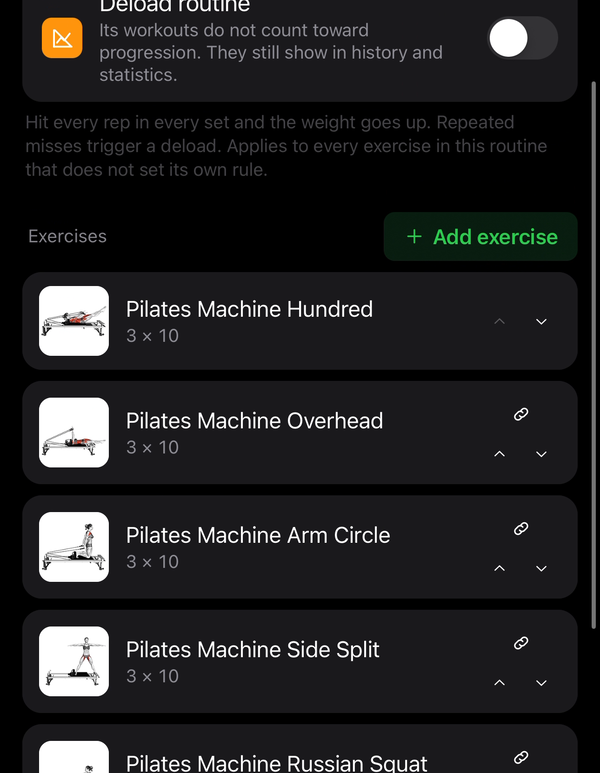
Your week: which routine goes on each day. You can load a ready-made one or build your own.
Start
The green button in the middle. You train and check off each set. Every exercise comes with its animation.
Stats
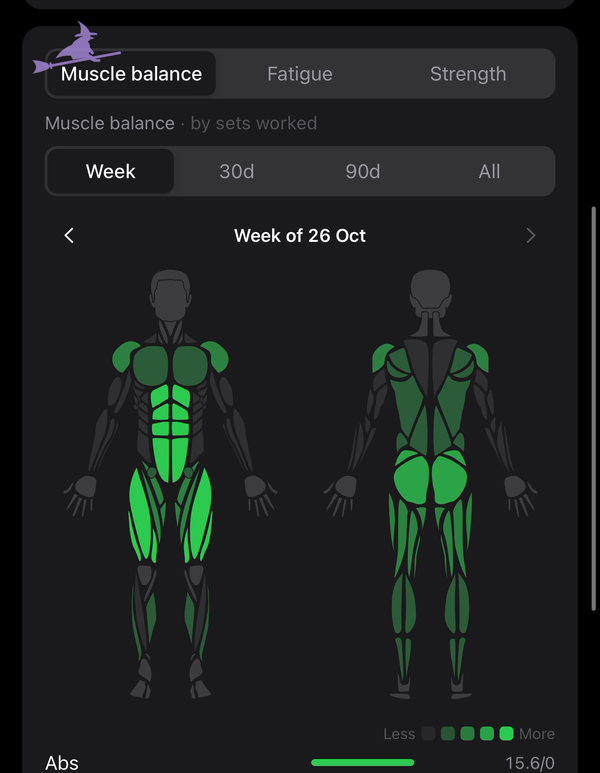
The body map: what you've trained in green and, below it, "Not trained in this period". Under Fatigue, what's still recovering.
Exercises
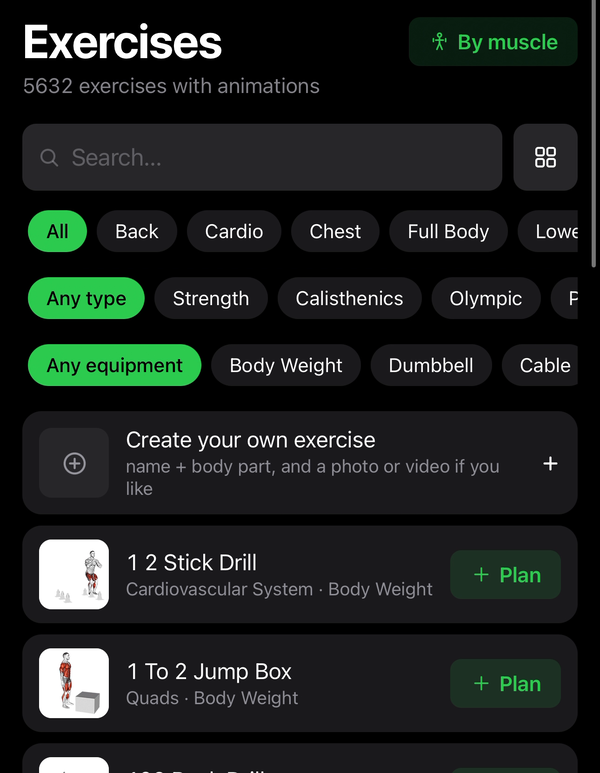
More than 5,600, with search. If you do Pilates, search "pilates": the reformer ones are there.
02On your computer
Four steps, top to bottom. About 20 minutes.
⌄
On your computer
Four steps, top to bottom. About 20 minutes.
You're going to install a free program called Docker. Think of it as a box: openGym runs inside that box, on your computer, and you open it in your browser as if it were a website. Nothing gets uploaded to the internet.
I tested it on a Mac on 10-28-2026, from scratch. On Windows the steps are the same, but I haven't tried them myself. You need about 2 GB free.
Install Docker Desktop
Go to docker.com, click Download Docker Desktop and pick your computer (on a recent Mac, Apple Silicon). Install it like any program and open it. The first time it asks you to accept its terms, and you can skip creating an account. It's free for personal use.
It worked if Docker Desktop is open and the bottom left says Engine running, in green.Open the Terminal
It's the window where you type instructions to your computer. You'll only paste one block.
- On Mac: press
Cmdand the space bar together, typeTerminaland press Enter. - On Windows: first install Git (next, next, finish). Then press the Windows key, type
PowerShelland open it.
It worked if you have a window with some text and a blinking cursor.- On Mac: press
Paste this and wait
Copy the whole block with the button, paste it into the Terminal and press Enter. The first time takes a few minutes.
For the Terminalgit clone https://github.com/DuarteSantos8/openGym cd openGym cp .env.example .env docker compose pull docker compose up -d
It downloads openGym into a folder called
openGym, goes into it, creates its settings file, downloads the program's two pieces (about 800 MB) and turns them on. On a Mac, if it's your first time usinggit, a window will pop up to install the "command line tools": accept, wait for it to finish and paste the block again.It worked if the last lines sayStartedtwice (once for each piece). On a good connection it took me 3 minutes.Open it and create your profile
Open localhost:8080 in your browser.
localhostmeans "this same computer": the website isn't on the internet, it's on your machine. Click Create new profile, type your name and confirm with your fingerprint or your face (Touch ID or Face ID). That's a passkey: a key that stays on your computer, with no password to remember. Inside, click Load starter plan or Build my own plan.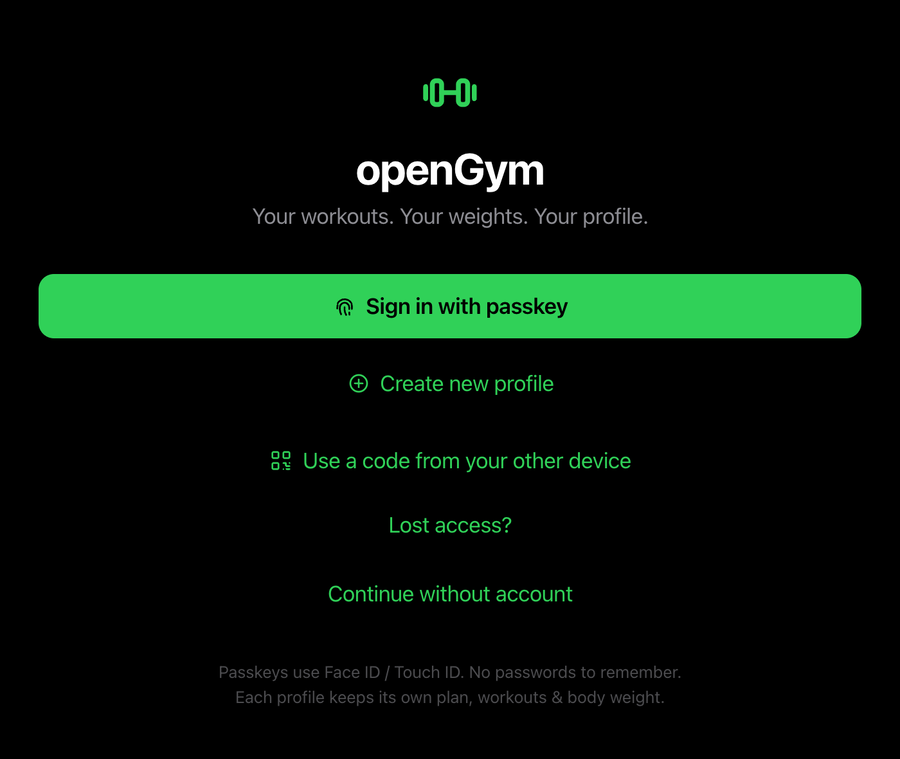
The first screen. Click Create new profile. 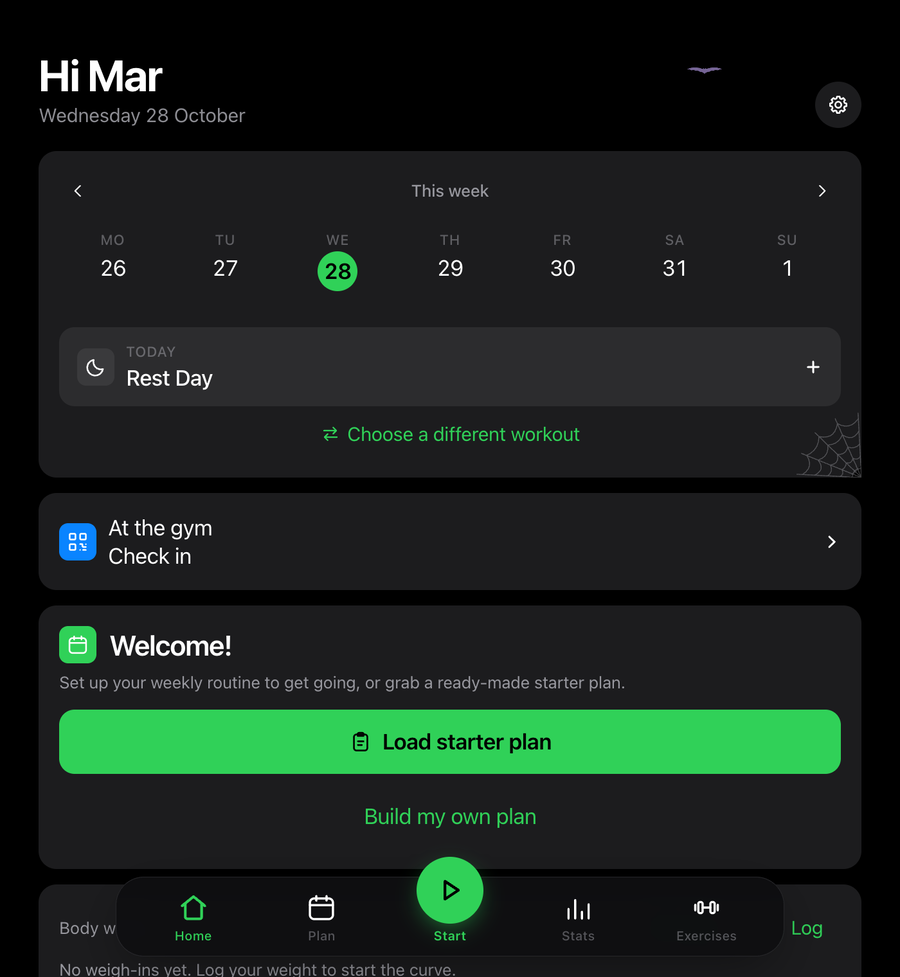
Inside, with the brand-new profile. It worked if you see "Hi" with your name and the week at the top.
Better with a profile than with "Continue without account". Without an account it also works, but your data stays only in that browser, and Claude can't read it.
As long as Docker Desktop is open, openGym stays at localhost:8080, even after a restart. To turn it off completely: in the Terminal, cd openGym and then docker compose down. To turn it back on, the same with docker compose up -d.
02With Claude
Ask it "which muscles haven't I trained this week?" and get an answer based on what you logged. Three steps.
⌄
With Claude
Ask it "which muscles haven't I trained this week?" and get an answer based on what you logged. Three steps.
openGym comes with an add-on (an MCP server) that lets Claude read your log: your routines, your workouts, your weight and the body map. It all happens on your computer.
First you need openGym on your computer, with your profile created: those are the 4 steps of the computer option. Claude reads what you log on that website. What you log only in the phone app, it can't see.
Install Node.js
It's a free program the add-on needs. Go to nodejs.org, download the version marked LTS and install it. Then open the Terminal and paste this:
For the Terminalcd ~/openGym/mcp npm install
It worked if it finishes without the wordERRand gives you the cursor back.Connect it to Claude
If you use Claude Code (what I use), paste this line into the Terminal:
For the Terminalclaude mcp add opengym -s user -e OPENGYM_DATA="$HOME/openGym/data" -- node "$HOME/openGym/mcp/src/index.js"
It worked if pastingclaude mcp listshowsopengymwith✔ Connected.If you use the Claude desktop app, paste this into your Mac's Terminal. It writes the settings text for you, already with your computer's paths:
For the Terminalecho "{\"mcpServers\":{\"opengym\":{\"command\":\"node\",\"args\":[\"$HOME/openGym/mcp/src/index.js\"],\"env\":{\"OPENGYM_DATA\":\"$HOME/openGym/data\"}}}}"Then, in the Claude app, open Settings, then Developer, and click Edit Config. If the file is empty or only has
{}, delete what's there and paste what the Terminal wrote (if it already has other add-ons, ask Claude to help you merge them). Save, quit the Claude app completely and open it again.This route, the desktop app, is the one in the add-on's official guide. I haven't tried it myself.
Ask it
Anything about your workouts. Some that work:
- which muscles haven't I trained this week?
- what's on for today, and with what weights?
- how has my weight gone this month?
- log that today I did 3 sets of 10 squats at 40 kg (for Claude to log workouts there's one more step, in the add-on's guide)
It worked if it answers with your routines and your days. For me, with my Monday Pilates class, it told me which muscles I'd left untrained that week.
+If you're coming from Strong or Hevy
for everyoneBring all your workouts over in one file.
⌄
If you're coming from Strong or Hevy
for everyoneBring all your workouts over in one file.
Export your workouts from your old app
In Strong, under Settings, Export Data. In Hevy, under your profile, Settings, Export & Import Data. It gives you a file.
Bring them into openGym
Go to Settings, then Data & backup, and tap Import from another app. Pick the file.
It worked if you see your old workouts under Stats. If you import the same file twice, nothing gets duplicated.
Exercises openGym doesn't recognize are created as your own exercises: nothing gets lost. Importing your history doesn't change your routines. With Hevy Pro you can also import directly, with Import from Hevy. I haven't tried it myself: it's what openGym's import guide says.
+For the curious
Merging phone and computer, making your own app, and who made it.
⌄
For the curious
Merging phone and computer, making your own app, and who made it.
Do the phone and the computer merge?
Not on their own. The phone app keeps everything on the phone, and the computer website, on the computer. To have it all together, the website has to be on the internet with its own secure address (https), and then you connect the app from Settings, Account, Connect to my server, with a one-time code. It's for people who already know how to set up a server: the author explains it in their guide for a Mac. I haven't tried it myself.
Can I make my own app with it?
Yes. The code is free (AGPL-3.0 license): you can copy it and change it. If you publish it for other people to use, your version has to have its code open too.
If you know the MIT license: both are open source, but they don't work the same way. With MIT you can do whatever you want, even close your version and sell it. With AGPL you can also use it, copy it and change it, but whatever you publish based on it has to stay open, even if you only offer it as a website. To use it yourself, without publishing anything, it asks nothing of you.
One thing to watch: the exercise animations aren't free. They belong to Gym visual and are licensed for openGym only. A non-commercial copy can keep them as they are, with their notice; for anything else you need your own license. The project's license explains it.
Who made it
Duarte Santos, from Switzerland. You'll find them on GitHub and LinkedIn. If you like it, a star on their repository helps.