AI video · Step by step

Turn your website into a video with a free tool.

HyperFrames is a free, open-source tool that turns a website into a video. Your AI writes the video as if it were a web page and HyperFrames records it frame by frame, without you opening an editor. Here are the four steps and a ready-to-copy message for each one.

HyperFrames is free
no per-video fees
4 steps
no editor needed
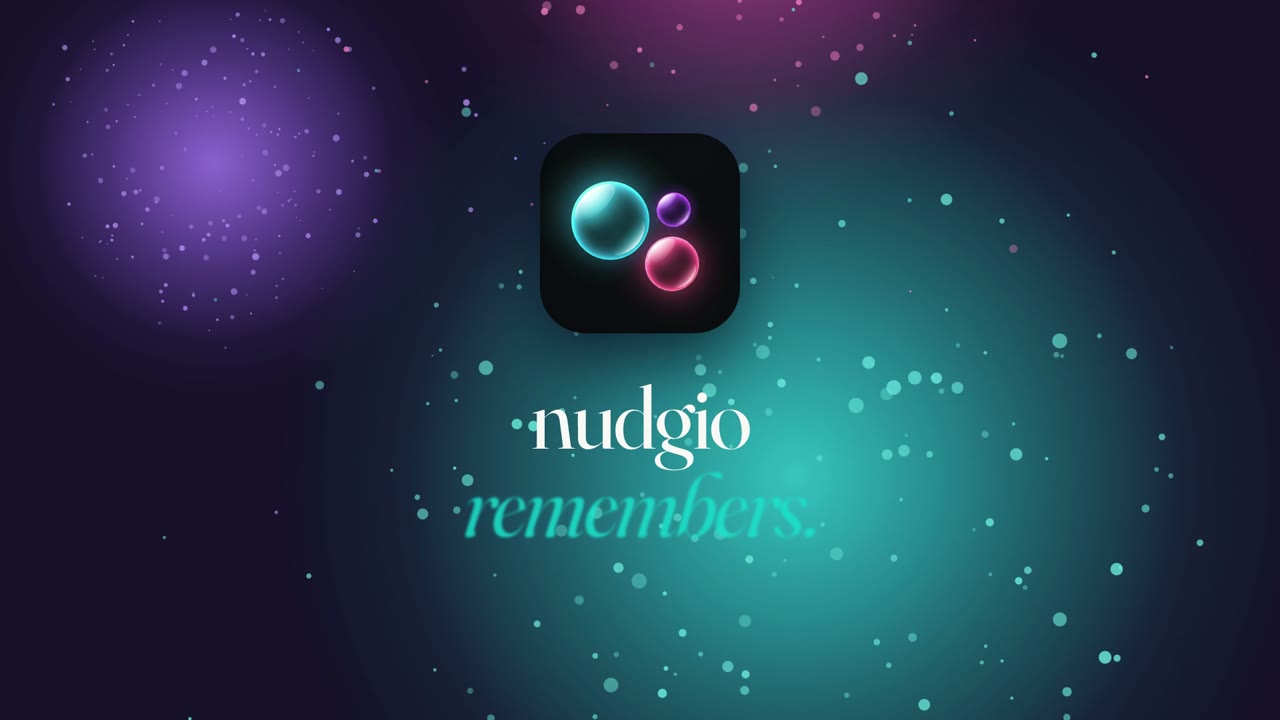
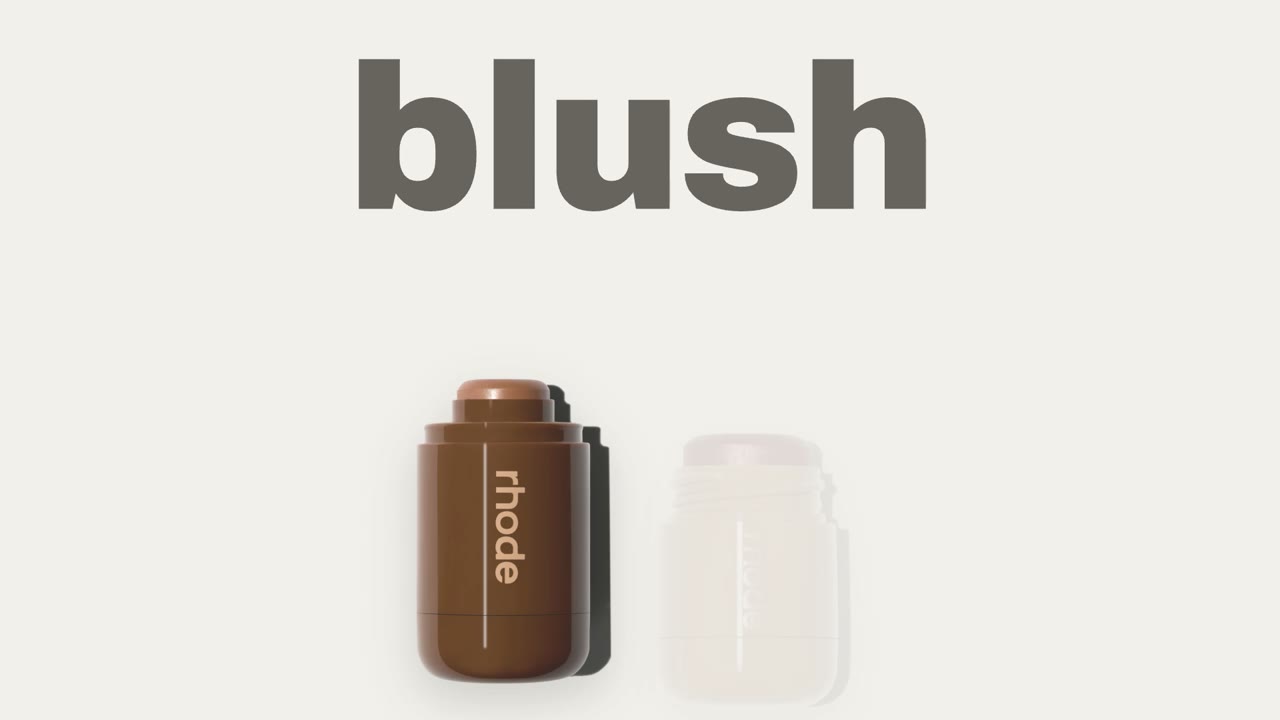
Frame from the video made from nudgio's website: its icon and the words nudgio remembersFrame from the video made from rhode's website: the word blush and a product

Two videos made this way, each from its own website. The rhode one is my own test using their website, not an ad from them.

01

What you need

before you start

Three things and an empty folder.

⌄
  • Your website, already live, with its address (for example https://yourbrand.example).
  • A computer. You can't do this on your phone: send yourself this link and continue there. I tested it with Claude Code on a Mac.
  • An AI that works on your computer, like Claude Code or Codex. They're like a normal chat, but they can also create files and run programs on your computer. Your AI does almost all the work.

What's free and what isn't

  • HyperFrames: free, and you don't pay for each video you render (rendering means generating the final video file).
  • Your AI: depends on which one you use. Claude Code isn't included in Claude's free plan: you need a paid one. Codex has a free version with limited usage in the ChatGPT app, though it hasn't reached every account yet. I haven't tested it.
  • The voice, if you want one: there are free options (your AI can set one up). The one I use is from ElevenLabs: to use it in a video for your brand, you need its paid plan. If you don't ask for a voice, the video comes out without one.
  • Music: your AI may ask you to sign in with a free HeyGen account to use its catalog, and wait until you do. It's optional: if you'd rather not, tell it "no music".

Before step 1: open your AI in a folder

Create an empty folder on your desktop, for example my-video. Your project gets saved there. Then open your AI inside that folder:

With Claude Code

Download the Claude app, sign in and open the Code tab. Under the text box, choose Local, then Open folder, and select my-video.

With Codex

Download the ChatGPT app, sign in, open the my-video folder and, in the ChatGPT dropdown, choose Codex.

If you already use the terminal: go into the folder with cd ~/Desktop/my-video and type claude or codex.

It worked if you ask your AI which folder it's in and it says my-video.
02

The four steps

start here

Copy each message, paste it into your AI and wait for it to finish before moving on.

⌄

It will keep asking permission to run things for these steps: say yes.

  1. Install HyperFrames

    Skills are instructions that teach your AI to use HyperFrames. Paste this in. It can go a while without showing anything: in my test it took under 2 minutes, nearly all of it downloading. Don't interrupt it. If you're missing Node or FFmpeg, it will take much longer, and your AI may ask you to open the Terminal app, paste a command and type your computer password (it stays invisible as you type). That goes in Terminal, never in the chat.

    Step 1 · install
    Install the HyperFrames skills in this folder with:
    npx skills add heygen-com/hyperframes
    
    This needs Node 22.20 or later and FFmpeg: if either is missing, help me install it.
    When it's done, run npx hyperframes doctor and tell me if anything is missing.

    Node and FFmpeg are two programs HyperFrames uses under the hood, and doctor is the command that checks you have everything. When it's done, quit your AI's app completely and open it again. Start a new chat and choose the my-video folder again.

    It worked if your AI confirms the skills are installed and that Node and FFmpeg are fine. If doctor flags Docker, whisper, Kokoro, MusicGen or Chrome, that's OK: the first four are optional and Chrome downloads by itself in step 2.
  2. Give it your website

    Replace https://YOUR-WEBSITE with your address. HyperFrames goes through that page from top to bottom and keeps what it needs. If your website has several pages, give it the main one. It took me about a minute.

    Step 2 · your website
    Capture my website with:
    npx hyperframes capture https://YOUR-WEBSITE -o capture
    
    When it finishes, tell me which colors, fonts, text and photos it found.
    It worked if it lists your colors, your fonts, your text and your photos, and you see a new folder called capture.
  3. Pick a story

    Your AI proposes three different videos and you choose. This is the step that decides how it turns out, so take your time with them.

    Step 3 · the stories
    Using what you captured, propose three different stories for a 30-second promo video.
    Use only what my website says: don't make up data, customers or numbers.
    Write them in STORYLINES.md and stop so I can choose.
    It worked if you have three stories to read and your AI has stopped to wait. Don't reply yet: you'll choose in the step 4 message.
  4. Watch it, fix it and get the MP4

    An MP4 is a regular video file, the kind you upload to social media. First it shows you in the browser. Change B to the one you picked. If you want it for TikTok or Reels, change 1920x1080 to 1080x1920. This part takes the longest and uses the most of your plan. If your AI says you've hit your limit, wait for it to reset and type "continue".

    Step 4 · build and watch
    I choose story B. Build it in 1920x1080.
    When it's ready, open the preview with npx hyperframes preview and wait for my corrections. Don't render it yet.

    To fix it, tell it in the chat what you don't like, the way you'd tell a person: "this sentence is unclear", "show my app here". The preview shows the line "Describe a change to the agent", and your AI may offer you the HyperFrames desktop app or Framey. You don't need them: use the chat. When you like it, send this:

    Step 4 · the MP4
    That's good. Render it to MP4 and tell me where you saved it.
    It worked if your AI tells you where the .mp4 is (usually inside a folder called renders) and opening it plays your whole video.
+

To get a better result

Three things to ask for or keep in mind.

⌄
  • Give it context. Tell it who you're talking to and what you want the video to achieve. If your AI already knows your brand, say so: I asked for that in mine.
  • The voice. If you want a voice, ask your AI and it will tell you your options. If it asks for a key (like a password for using that service), don't paste it in the chat: ask it where to store it.
  • Another brand's website. You can practice with it, but don't publish the result as if it were theirs.
+

For the curious

How it works inside.

⌄

It's like doing stop motion with a website. Your AI writes the video in HTML, the same language web pages use. HyperFrames opens it in a browser, moves forward one frame, takes the picture, moves forward again, and at the end joins them into an MP4. That's why it comes out the same every time you render it.

It's made by HeyGen, and the code is on GitHub under the Apache 2.0 license. Its desktop app is free too; its Pro plan is paid and adds HeyGen's models, but you don't need it for this guide.

HyperFrames collects usage data to improve the tool, anonymous until you sign in. Turn it off with npx hyperframes telemetry disable.